

Sometimes we want to practice a simple pandas join, but we spend more time finding a dataset than writing the code.
The dataset might have the wrong columns. It might contain only one table. Or we might only need a few hundred rows to try something out.
In that case, we can create the data ourselves.
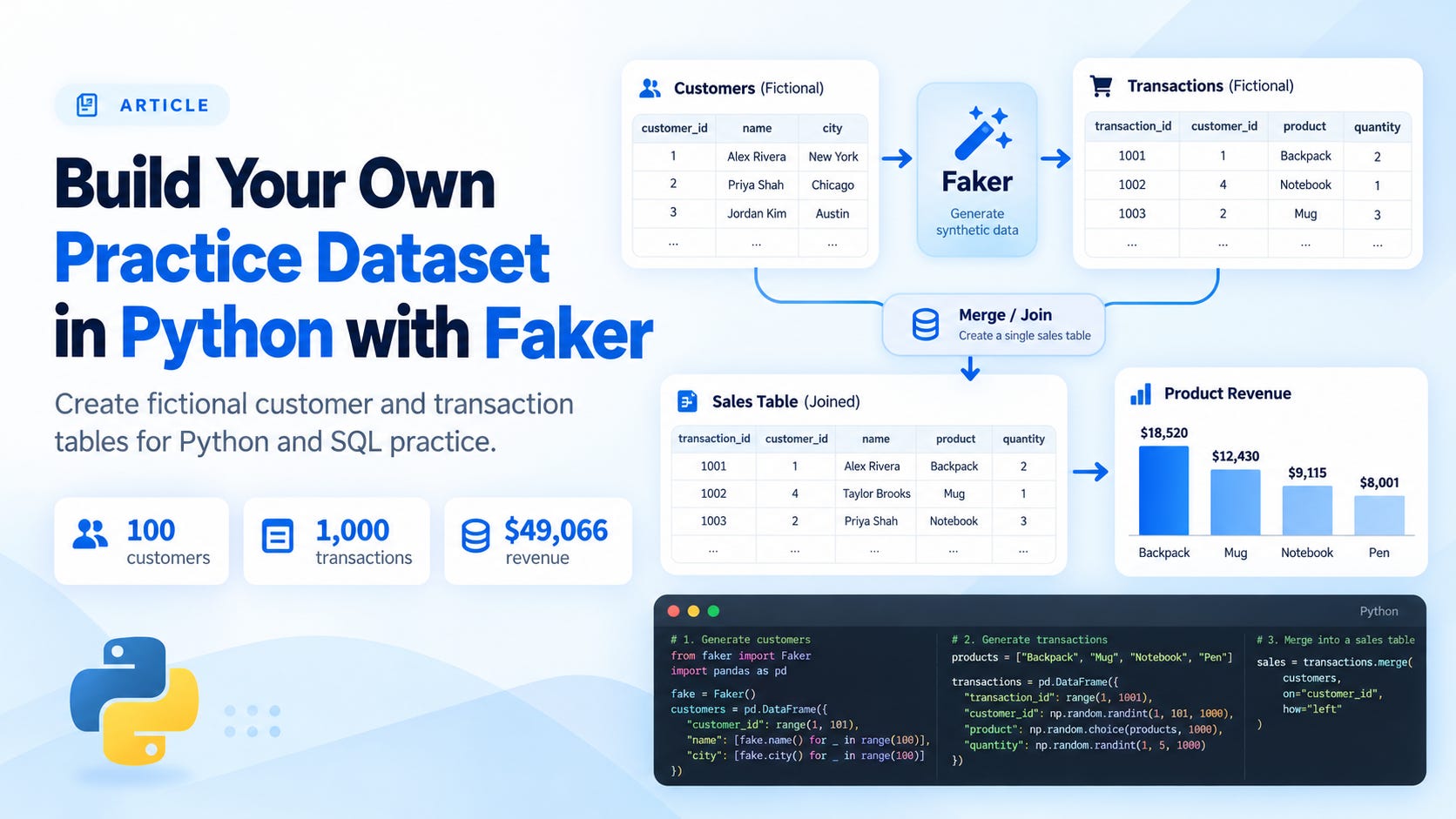
In this article, we will use Faker to build 100 fictional customers and 1,000 transactions. Then we will join the tables, calculate revenue, and export the results to CSV files.
The experiment produces 1,000 joined rows and $49,066.00 in fictional revenue. We will use these numbers to check our work as we go.
You can find the complete script and sample data in the GitHub repository. No external dataset is necessary.
Let’s get into it.
Why generate your own datasets
Imagine we want to practice answering a question like which product generates the most revenue.
We need products, quantities, and prices. If we also want to identify which customers made those purchases, we need a customer table with an ID that connects to the transactions.
Creating the tables ourselves lets us decide exactly what to practice.
Faker is a Python package for generating fictional values, including names and locations. We can combine these values with rules we define ourselves to create a practice dataset.
For example, Faker can provide customer names, while our code ensures every transaction refers to an existing customer.
This is useful for learning pandas, preparing a SQL exercise, or testing a small application without using work customer records.
Why use Faker when we have LLMs
An LLM can generate sample data or write a Python generator for us. Faker’s value is its ready-made fields, such as names and cities. Our code controls the row counts, prices, and relationships between tables.
We can use them together: ask an LLM to help write the script, use Faker for common fields, and validate the output with Python.
For this tutorial, we want reusable data for practicing joins and aggregations. The random transactions do not represent real customer behavior.
Prepare the environment
For preparation, use Python 3.11 or later and create a virtual environment in your project folder.
python -m venv .venvActivate the environment with the command for your system.
# Windows PowerShell
.venv\Scripts\Activate.ps1
# macOS or Linux
source .venv/bin/activateNext, install the packages. These are the versions used for the experiment.
python -m pip install Faker==40.43.0 pandas==3.0.1Run the following Python examples in order in a notebook, or save them together in one Python file. The terminal commands are separate from the Python code.
Create fictional customer records
Let’s start by creating our customer table.
from datetime import date
from pathlib import Path

import pandas as pd
from faker import Faker

fake = Faker("en_US")
fake.seed_instance(42)

customers = pd.DataFrame([
    {
        "customer_id": f"C{i:04d}",
        "name": fake.name(),
        "city": fake.city(),
    }
    for i in range(1, 101)
])

print(customers.head().to_string(index=False))
The first three records from the experiment look like this.
customer_id  name              city
C0001        Allison Hill      East Jill
C0002        Stephanie Miller  Johnsonland
C0003        Jonathan Johnson  Lake Debra
The code creates one row for each customer. We use fake.name() for the name and fake.city() for the city.
The en_US locale selects US English providers. These are generated names and city strings, so we should not treat the city column as a verified list of real locations.
For the customer ID, we use a sequence from C0001 to C0100. The 04d part pads each number with zeros to at least four digits.
Why create the ID ourselves? Two customers can have the same name. We need a unique value to identify each customer when connecting the tables.
We also use seed_instance(42) to make the experiment repeatable. With the same Faker version and the same sequence of calls, we can generate the same values again. Faker explains this behavior in its seeding documentation.
Changing the seed gives us another set of fictional records. Adding extra Faker calls can also change the values generated later, which is why the order of the code matters.
Build a transaction dataset
Next, let’s create transactions for a small fictional shop.
We will sell four products: Notebook, Pen, Mug, and Backpack. Each transaction includes one product and a quantity between 1 and 5.
products = {
    "Notebook": 500,
    "Pen": 150,
    "Mug": 1200,
    "Backpack": 4500,
}

customer_ids = customers["customer_id"].tolist()
rows = []

for i in range(1, 1001):
    product = fake.random_element(elements=tuple(products))
    rows.append({
        "transaction_id": f"T{i:06d}",
        "customer_id": fake.random_element(elements=customer_ids),
        "product": product,
        "quantity": fake.random_int(min=1, max=5),
        "transaction_date": fake.date_between(
            start_date=date(2025, 1, 1),
            end_date=date(2025, 12, 31),
        ),
        "unit_price_cents": products[product],
    })

transactions = pd.DataFrame(rows)
transactions["transaction_date"] = pd.to_datetime(
    transactions["transaction_date"]
)

print(transactions.head().to_string(index=False))
A few things to note from the code above.
First, the prices are stored in US cents. A Notebook costs 500 cents, or $5.00. Using whole cents keeps our revenue calculations in integers. We will divide by 100 when displaying dollar amounts.
Second, we select the customer ID from the customer table we already created. We do not generate a new customer ID for each transaction. This makes sure the two tables can connect.
Third, we select a product before looking up its price. This keeps the price consistent for each product.
Lastly, we use a fixed date range covering 2025. Relative dates such as the last 30 days would move as time passes. A fixed range makes it easier to reproduce and compare the experiment later.
Each row represents a complete purchase of one product type. We are keeping this example simple: there are no shopping baskets, discounts, taxes, or returns.
Connect the datasets
Now, let’s connect each transaction with its customer using a pandas join.
sales = transactions.merge(
    customers,
    on="customer_id",
    how="left",
    validate="many_to_one",
    indicator=True,
)

assert sales["_merge"].eq("both").all()
assert len(sales) == len(transactions)

sales = sales.drop(columns="_merge")
sales["revenue_cents"] = (
    sales["quantity"] * sales["unit_price_cents"]
)

print(f"Joined rows: {len(sales)}")
print(f"Revenue (USD): {sales['revenue_cents'].sum() / 100:,.2f}")
The result is the following.
Joined rows: 1000
Revenue (USD): 49,066.00
We use a left join to keep all transactions and add the matching customer information.
The validate="many_to_one" parameter checks that each customer ID appears only once in the customer table. One customer can have many transactions, but one transaction should match only one customer row. This helps us catch duplicate customer IDs that could otherwise increase the number of joined rows and inflate revenue.
The _merge column shows whether a row found a match. We check that every transaction matches a customer and that the join keeps the transaction count unchanged. You can find more details in the pandas merge documentation.
With the tables connected, let’s calculate revenue for each product.
revenue_by_product = (
    sales.groupby("product")["revenue_cents"]
    .sum()
    .sort_values(ascending=False)
)

print((revenue_by_product / 100).rename("revenue_usd"))
The experiment produces the following totals in USD.
Product   Revenue
Backpack  35,190.00
Mug       9,192.00
Notebook  3,505.00
Pen       1,179.00
As we can see, Backpack contributes the highest revenue in this generated dataset. However, we assigned Backpack the highest unit price, and we randomly generated the purchases. This is an aggregation result for practicing Python, rather than evidence of customer demand.
Turn the data into a small project
Let’s save the tables so we can reuse them outside the notebook.
output = Path("data")
output.mkdir(parents=True, exist_ok=True)

customers.to_csv(output / "customers.csv", index=False)
transactions.to_csv(
    output / "transactions.csv",
    index=False,
    date_format="%Y-%m-%d",
)
sales.to_csv(
    output / "sales.csv",
    index=False,
    date_format="%Y-%m-%d",
)
The index=False parameter prevents pandas from adding the DataFrame index as an extra CSV column. Running the code again replaces these files in the same folder.
When loading the transaction CSV later, parse the date column explicitly.
transactions_loaded = pd.read_csv(
    "data/transactions.csv",
    parse_dates=["transaction_date"],
)
We now have material for several small exercises. Try calculating monthly revenue, finding the five customers with the highest spending, or identifying customers who have no transactions. The last exercise requires starting from the customer table so customers without purchases can still appear.
You can also practice SQL. The repository includes practice_sql.py, which loads both CSV tables into a local SQLite database and runs this query.
SELECT t.product,
       SUM(t.quantity * t.unit_price_cents) / 100.0 AS revenue_usd
FROM transactions AS t
JOIN customers AS c ON t.customer_id = c.customer_id
GROUP BY t.product
ORDER BY revenue_usd DESC;
Run it from the project folder with the following terminal command.
python practice_sql.pyThe SQL results match the pandas product totals. This gives us a simple way to practice the same calculation with two tools and compare the answers.
Reuse the generator
The complete generate_data.py script puts the steps into functions and adds command-line options.
Download or clone the repository, open a terminal in its folder, and activate your environment. Then run:
python -m pip install -r requirements.txt
python generate_data.py
The default command creates 100 customers and 1,000 transactions. It also saves the joined sales table, a product revenue summary, and a metadata file recording the seed, package versions, and generation settings.
For a different exercise, change the number of rows and the seed.
python generate_data.py --customers 250 --transactions 5000 --seed 7 --output data-customThis command writes another dataset into data-custom. Keep the same settings and package versions when you want to repeat that particular experiment.
The project also includes checks for repeatable generation, valid customer references, date and quantity ranges, and join problems. You can run them with:
python -m unittest -vAfter working with the clean version, try adding a separate copy with missing values or duplicate customer rows. Then practice finding and fixing those problems before calculating revenue again.
Conclusion
Faker helps us create fictional values, and a few Python rules turn those values into related tables we can use for practice.
An LLM can help us build this generator, while Faker supplies common fields and our code controls how the tables fit together.
In this article, we created customers and transactions, connected them with pandas, calculated revenue, and exported the datasets for further Python and SQL exercises.
Start with the default dataset, check the product totals, and then change the generator to support the next question you want to practice.
I hope it helps!
Continue Learning with Non-Brand Data
If you want to learn more about Data Science, Machine Learning, and AI, you can subscribe to Non-Brand Data. I regularly share articles, experiments, and examples that we can learn from.
For readers who want to explore a subject in more detail, the paid subscription also includes in-depth tutorials, written courses, notebooks, code, and additional learning materials.
I also offer 1-on-1 mentorship through MentorCruise if you want to discuss your learning direction, Data Science projects, technical challenges, or career development.