


Groq provides an API that we can use to access language models from Python. With the API, we can send a question and receive the model’s response in our notebook.
In Lesson 1, we used the Python code and Groq responses provided in the course notebook to calculate revenue. Now, we will send the requests ourselves from Google Colab. We will use Groq to generate the code, run the calculation, and ask another question using the result.
Let’s try this with the order dataset from the previous lesson.
1. Using Groq in Google Colab
First, open the Lesson 2 notebook in Colab and choose Copy to Drive. Run the following code to load the functions we will use:
from pathlib import Path
from urllib.request import urlopen

materials_url = (
    "https://raw.githubusercontent.com/CornelliusYW/"
    "NBD-AI-Assisted-Data-Analysis-Course/main/"
    "analysis_course/lesson02_materials.py"
)
Path("lesson02_materials.py").write_bytes(
    urlopen(materials_url, timeout=30).read()
)

from lesson02_materials import (
    get_exchange, save_exchange, CALCULATION_PROMPT, FOLLOWUP_PROMPT
)

USE_LIVE_AI = False
The code downloads lesson02_materials.py from the course repository and imports two functions:
get_exchange()sends our request to Groq or loads a saved example.save_exchange()saves the request, response, and our notes in a file.
The file also contains CALCULATION_PROMPT and FOLLOWUP_PROMPT, which are the requests for this example. You can read the complete Python file here.
We set USE_LIVE_AI = False to use the saved responses from the course experiment. This option lets you follow the article without a Groq account. To send a new request, create your own API key through the Groq console, then follow these steps in Colab:
Open Secrets using the key icon in the left sidebar.
Add GROQ_API_KEY and put your key in its value field.
Enable Notebook access for that secret.
Change
USE_LIVE_AItoTrueand run the setup cell again.
The function reads the key using userdata.get("GROQ_API_KEY"). Keep the key in Secrets when using the notebook. If Colab cannot find it, check the name and notebook-access setting.
2. Sending a request to Groq
Let’s prepare the dataset using pandas:
import pandas as pd

orders = pd.DataFrame(
    [
        ["A", "delivered", 100, 10, 20],
        ["B", "delivered", 80, 0, 0],
        ["C", "cancelled", 200, 0, 0],
        ["D", "delivered", 60, 0, 10],
    ],
    columns=[
        "order_id", "status", "gross_usd", "discount_usd", "refund_usd"
    ],
)
original_orders = orders.copy(deep=True)
print(orders.to_string(index=False))
The orders DataFrame contains four orders with their status, gross amount, discount, and refund. Each row represents one order, and all amounts are in USD. We also create original_orders to compare the data after running the calculation.
We want to calculate net merchandise revenue for delivered orders. In the previous lesson, we selected orders A, B, and D and subtracted their discounts and refunds from the gross amounts. We will ask Groq for the pandas code using the same calculation.
The request is stored in CALCULATION_PROMPT. We can display it with the following code:
messages = [{"role": "user", "content": CALCULATION_PROMPT}]
print(messages[0]["content"])
The text includes the order table as CSV, followed by this instruction:
Use pandas to calculate net merchandise revenue for delivered orders only. Subtract
discount_usdandrefund_usdfromgross_usd. Leave the originalordersDataFrame unchanged. Show the included order IDs, their net amounts, and the total.
In the code above, messages is a list containing our request. We use role to identify who is sending the message and content for its text. The value user means that this is our question for the model.
The table is included in the text because Groq receives the messages we send through the API. It cannot read the orders variable directly from Colab. If we change the dataset, we also need to update the table in the request.
With the request ready, let’s use get_exchange():
exchange = get_exchange(messages, use_live=USE_LIVE_AI)

print("Response source:", exchange["source"])
print("Model:", exchange["response"]["model"])
print("Finish reason:", exchange["response"]["finish_reason"])
print(exchange["response"]["content"])
We pass messages as the first argument and use USE_LIVE_AI to choose between a new request and the saved example. The function returns a dictionary called exchange. Its response contains the model name, generated text, and finish reason.
For this example, we use openai/gpt-oss-20b through Groq. The settings are temperature 0, top-p 1, a maximum of 2,048 completion tokens, and low reasoning effort. Groq currently lists the model under its free plan limits.
If you use the saved example, the output starts with Response source: recorded Groq response. A new request shows live Groq API. The saved response is the actual response captured for this article on 1 November 2026. You may receive different code when sending a new request.
3. Running the generated code
Below is the first response displayed in Colab:
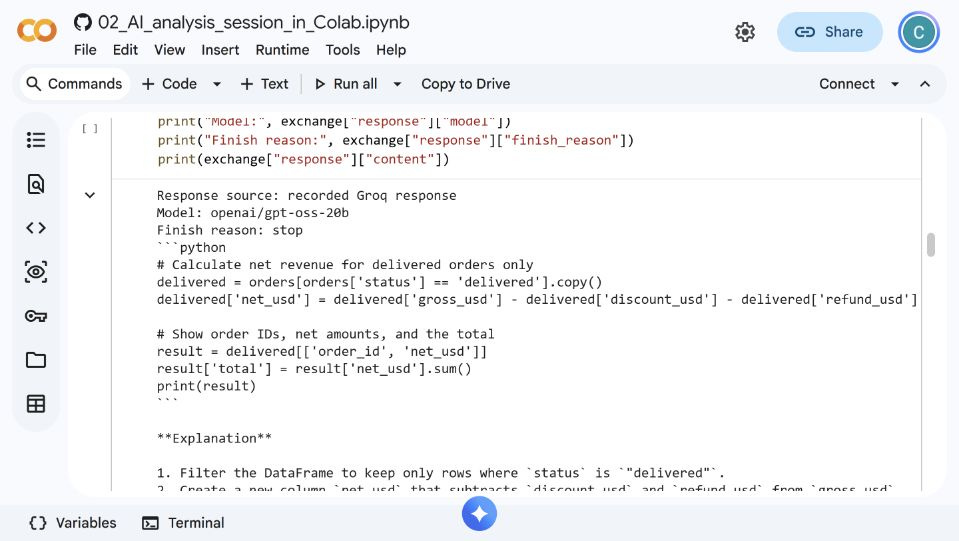
Groq generated the following code:
# Calculate net revenue for delivered orders only
delivered = orders[orders['status'] == 'delivered'].copy()
delivered['net_usd'] = delivered['gross_usd'] - delivered['discount_usd'] - delivered['refund_usd']

# Show order IDs, net amounts, and the total
result = delivered[['order_id', 'net_usd']]
result['total'] = result['net_usd'].sum()
print(result)
The response contains Python code as text. We can run it in a separate code cell. The article and notebook use the saved code above for the calculation; the exercise template has a cell for code from your own response.
Running the example gives this result:
  order_id  net_usd  total
0        A       70    200
1        B       80    200
3        D       50    200
Let’s take a look at the calculation. The first line selects the rows where status is delivered and uses .copy() to create a separate DataFrame. Next, we subtract the discount and refund columns to create net_usd.
As we can see, order A contributes USD 70, B contributes USD 80, and D contributes USD 50. The code adds these amounts using sum(), giving USD 200.
The total column shows the same value in each row. This happens because the code assigns the result of sum() to the entire column. Each value represents the total for all three orders. We would get USD 600 if we added that column again.
We can compare the original data with the copy we made earlier:
pd.testing.assert_frame_equal(orders, original_orders)
print("The original orders DataFrame is unchanged.")
The check confirms that orders is unchanged. The local run with pandas 2.2.3 also returned SettingWithCopyWarning when adding the total column to result. We will include that message in our next request and ask Groq to print the total on a separate line.
4. Asking a follow-up question
We can continue the conversation by adding the earlier response and our next question to messages. Let’s try the following code:
follow_up_messages = messages + [
    {"role": "assistant", "content": exchange["response"]["content"]},
    {"role": "user", "content": FOLLOWUP_PROMPT},
]
print(follow_up_messages[-1]["content"])

follow_up = get_exchange(follow_up_messages, use_live=USE_LIVE_AI)
print("Response source:", follow_up["source"])
print(follow_up["response"]["content"])
The first new dictionary uses assistant for the response we received from Groq. The second uses user for our follow-up question. We pass the complete list to get_exchange() to get the next response.
For this example, FOLLOWUP_PROMPT contains the code we ran, its output, and the pandas warning from the course experiment. The request asks Groq to:
Explain the purpose of
.copy()in the order selection.Explain why the total appears in every row.
Revise the display to print each order’s net amount and the total once.
You can read the complete question in the cell output. When writing your own follow-up, replace that text with the code, result, and question from your analysis.
Groq returned the following revised code:
# 1. Keep only delivered orders (explicit copy)
delivered = orders[orders['status'] == 'delivered'].copy()

# 2. Compute net revenue
delivered['net_usd'] = delivered['gross_usd'] - delivered['discount_usd'] - delivered['refund_usd']

# 3. Create a new DataFrame that will be printed
output = delivered[['order_id', 'net_usd']].copy()   # explicit copy before modification

# 4. Print each order and its net amount
print(output)

# 5. Print the total once on a separate line
total_net = delivered['net_usd'].sum()
print(f"\nTotal net revenue: ${total_net:.2f}")
The result is:
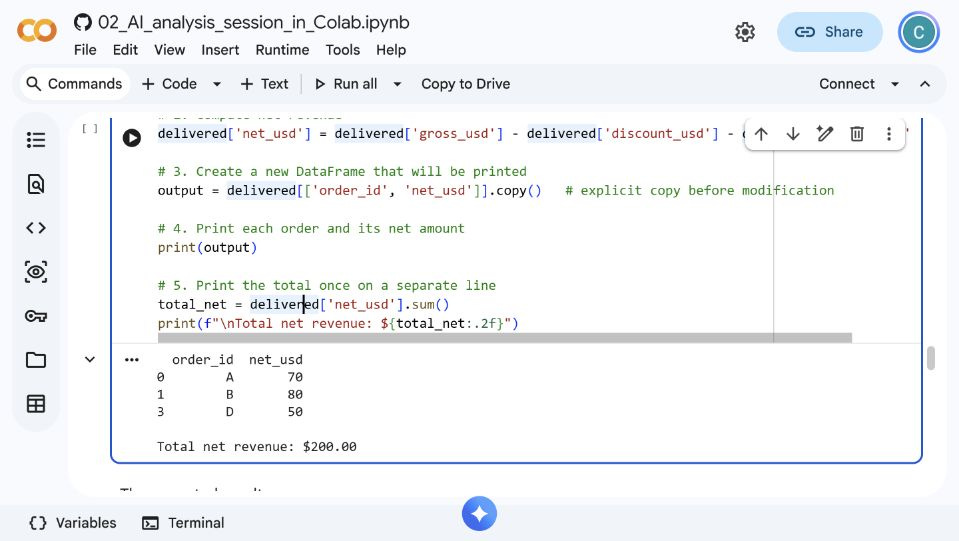
  order_id  net_usd
0        A       70
1        B       80
3        D       50

Total net revenue: $200.00
The order amounts remain the same. In the revised code, we select the order ID and net amount for output, then print the total using a separate print() call. The local run returned USD 200 without the warning, and the original data remained unchanged.
Groq also explained the repeated total as assigning one value across a column. Its explanation of filtering needs a correction: filtering does not always return a view. The result depends on the operation and pandas settings or version. The pandas indexing documentation explains this behavior. In our code, .copy() creates the separate DataFrame used for the amount calculation.
I made two Groq requests for this example and ran both generated calculations locally. You can find the original responses, code, and output in the experiment record.
5. Saving the request and response
Lastly, let’s save the conversation with our calculation results. We can use the save_exchange() function imported at the beginning:
review = {
    "code_source": "Reviewed revised code from the recorded course example",
    "included_order_ids": output["order_id"].tolist(),
    "net_amounts_usd": output["net_usd"].tolist(),
    "net_total_usd": int(total_net),
    "source_dataframe_unchanged": orders.equals(original_orders),
    "explanation_note": (
        "The original total column repeated one scalar total. "
        "Filtering does not always return a view; selection behavior "
        "depends on the operation and pandas settings/version."
    ),
}
saved_path = save_exchange(follow_up, review, "lesson02_review.json")
print("Saved:", saved_path)
print(saved_path.read_text(encoding="utf-8"))
In the review dictionary, we store the included order IDs, their net amounts, the total, and our note about the explanation. The code_source entry identifies the code used for these results. Here, it is the revised code from the saved course example.
The save_exchange() function accepts the exchange, our notes, and the filename. It writes them to lesson02_review.json. The file also contains the original request, response, model name, and capture date. The file excludes the API key.
Open Files in Colab and download lesson02_review.json. You can open the file as text or load it again in Python. Save your notebook copy as well to keep the code and its output.
For the saved example, the request text must match one of the requests included in the course file. If you want to try a different question, use live mode. A failed live request will show an error, and you can check your Groq access or account limits before trying again.
Exercise: Making requests from your notebook
Open the Lesson 2 exercise template and save a copy to your Drive. Use it to make a request, run the code, and ask about one part of the calculation.
1. Send a request and run the code
Use the supplied calculation request to get a live response or load the saved example.
Read the proposed code, then run the code you have reviewed in the practice cell.
Compare the included order IDs and net amounts with your calculation. Explain the total column if it appears in your output.
Check whether the original data changed. Note the model name and whether you used a live or saved response.
2. Ask a follow-up question
Ask about
.copy()or another operation in the response. Include the relevant code and actual output. UseFOLLOWUP_PROMPTwhen following the saved example.Explain which parts of the response you agree with and which statements need a correction or further explanation.
Run the revised code after reading it, then compare the order amounts and total with your first result.
Write your own notes, save the exchange, and download the JSON file.
Keep the following in your notebook:
Your requests and the responses you received.
The code you ran and its actual output.
Your explanation of the calculation and any changes you made.
The filename used for your saved notes.
You can compare your work with the exercise solution. If you use a live response, explain the result you received, including any differences from the saved example.
Conclusion
In this lesson, we used the Groq API to request Python code from Google Colab. We ran the calculation, used its output in a follow-up request, and saved the conversation with our notes.
In Lesson 3, we will use AI to help understand a business question before choosing the calculation. We will start with the request “Explain the change in sales” and decide which information we need to ask for.